
Plan views & pricing display
Treatment Presenter shows the same plan two ways and lets you decide exactly how much pricing detail the patient sees. You set this per patient in the Builder’s Financials tab (and you can change it chairside) — or set a house default once in Settings.
The two patient views
Section titled “The two patient views”- Arch & Region — groups the work by where it is in the mouth. Best for helping a patient picture the treatment.
- Itemized — a straightforward line-by-line list of procedures and fees.
When both views are on, the patient gets tabs to switch between them. When only one is on, they simply see that one. You choose which views patients can use, and which opens first, under Financials → Patient views (or the house default in Settings → Presentation).
Choose which prices show
Section titled “Choose which prices show”In the Builder’s Financials tab:
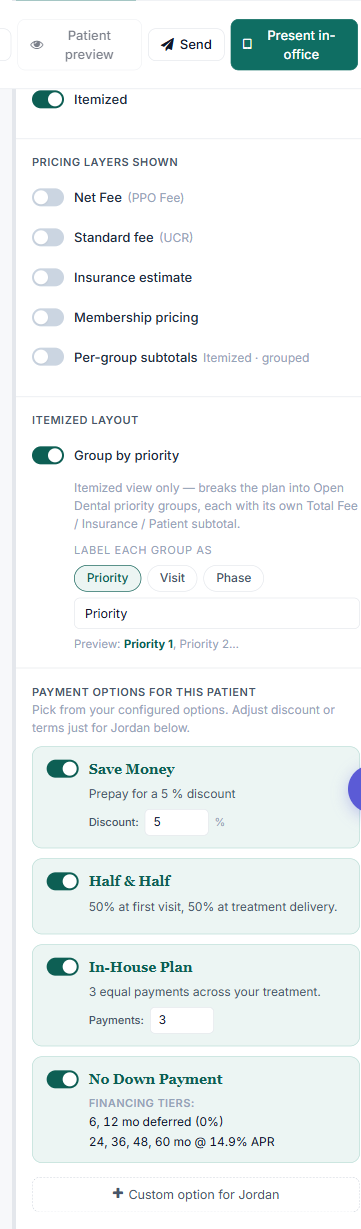
- Show prices in — one switch per view (Arch & Region, Itemized). Turn a view’s prices off and that view shows the plan with no dollar figures.
- Pricing layers shown — pick which lines appear under each procedure’s fee:
- Net Fee (PPO Fee) — the amount your office actually collects (the main number).
- Standard fee (UCR) — the full fee before any insurance or contract adjustment.
- Insurance estimate — roughly how much insurance is expected to cover. For a patient with both primary and secondary insurance, this splits into two lines — Primary ins. and Secondary ins. — so they can see each plan’s share; a patient with only primary insurance still sees one combined line.
- Show Procedure Discounts — your practice’s Open Dental procedure discounts, shown the way Open Dental shows them: the fee before the discount, with a “Discount −$X” line beneath it.
A layer only shows when it’s meaningful — for example, “Insurance estimate” appears only on procedures the patient actually has coverage for. Turn all layers off (with a view’s prices still on) and the per-row fees disappear, leaving just the summary at the bottom.
Every one of these toggles is saved per patient and carries to chairside Present Mode and the patient’s at-home link.
The Plan Summary card
Section titled “The Plan Summary card”At the bottom of every view, a summary block shows the bottom line after the patient has read the plan:
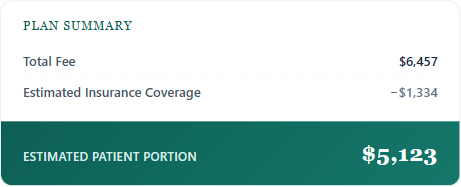
- Total Fee
- Estimated Insurance Coverage
- Estimated Patient Portion — highlighted, because it’s the number that matters most to the patient.
The summary hides when the current view’s prices are turned off.
Group the Itemized view by priority
Section titled “Group the Itemized view by priority”Turn on Group by priority (Financials tab) to break the Itemized view into cards that match the priority order you set in Open Dental — Priority 1, Priority 2, …, then any custom-named groups, then anything else under Additional. Each card ends with its own Net · Insurance · Patient subtotal, so the patient understands what happens at each visit.
- Subtotals show only when Show prices in → Itemized is on.
- The order comes from Open Dental priorities — to re-sequence, change the priority in OD and refresh.
- You can rename the group word (Priority / Visit / Phase / your own) in Settings → Presentation.
How the Total is figured
Section titled “How the Total is figured”The Total — on the dashboard, in the Builder, and in the summary — reflects what your office can actually collect, based on the patient’s primary insurance:
- In-network (PPO) patient → uses your negotiated PPO rate, not your standard fee. So a crown might total $936 (the allowed rate) rather than your $1,820 standard fee.
- Out-of-network, or no insurance → uses your standard fee, since that’s what you can collect.
- Any discounts set in Open Dental are subtracted.
The Total counts every treatment-planned procedure on the patient’s active plan, not just the ones in the dashboard’s date window.