
Marking Patient Referrals in Open Dental
Add a “How did you hear about us?” question whose choices come straight from the referral list you already keep in Open Dental — and have the patient’s answer attached to their chart as their referral source, without anyone re-typing it at the front desk.
Who can do this: Admin / Manager (the roles that can edit forms — see Forms permissions by role) Where: Sidebar > Forms > select the form row (or its pencil, Modify Form)
How it works
Section titled “How it works”The question is an Open Dental Data Field control set to the REFERRALS data type. Its dropdown is filled from Open Dental’s own referral list (the same list the front desk picks from when entering a referral by hand), so the choices always match what your practice tracks. Hidden referrals and referrals that are themselves patients are left out. Each entry shows as the referral’s last name followed by first name — an entry like “Google” shows as just that.
When the patient submits, Teamio attaches their pick to the chart as the referral source. Everything else about the control — labels, required rules, Highlight for Alert — works like any other control.
-
Open the form in the builder and select Add Control in the section where the question belongs.
-
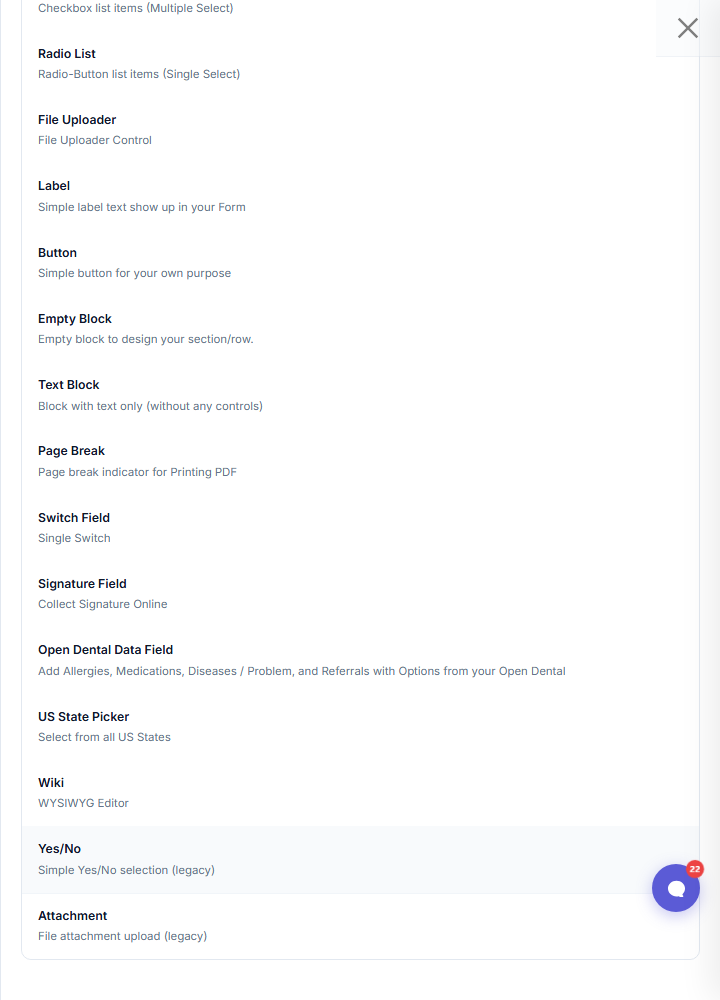
Choose Open Dental Data Field — the entry reads Add Allergies, Medications, Diseases / Problem, and Referrals with Options from your Open Dental.
-
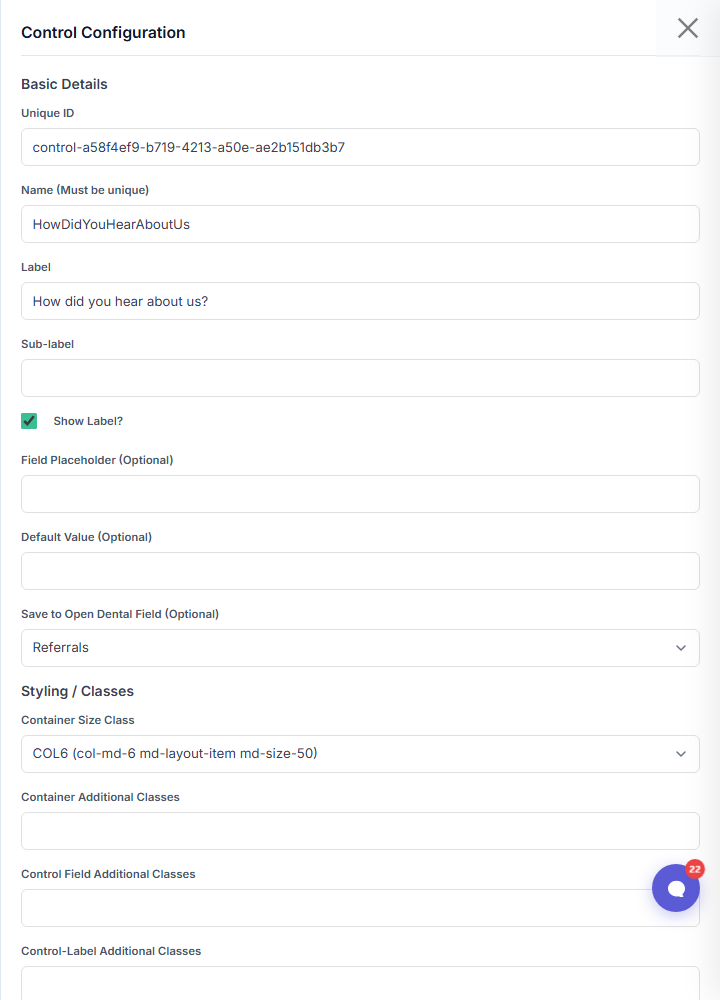
In the control’s Configuration panel, give it a Label such as How did you hear about us? and set Save to Open Dental Field to Referrals.
-
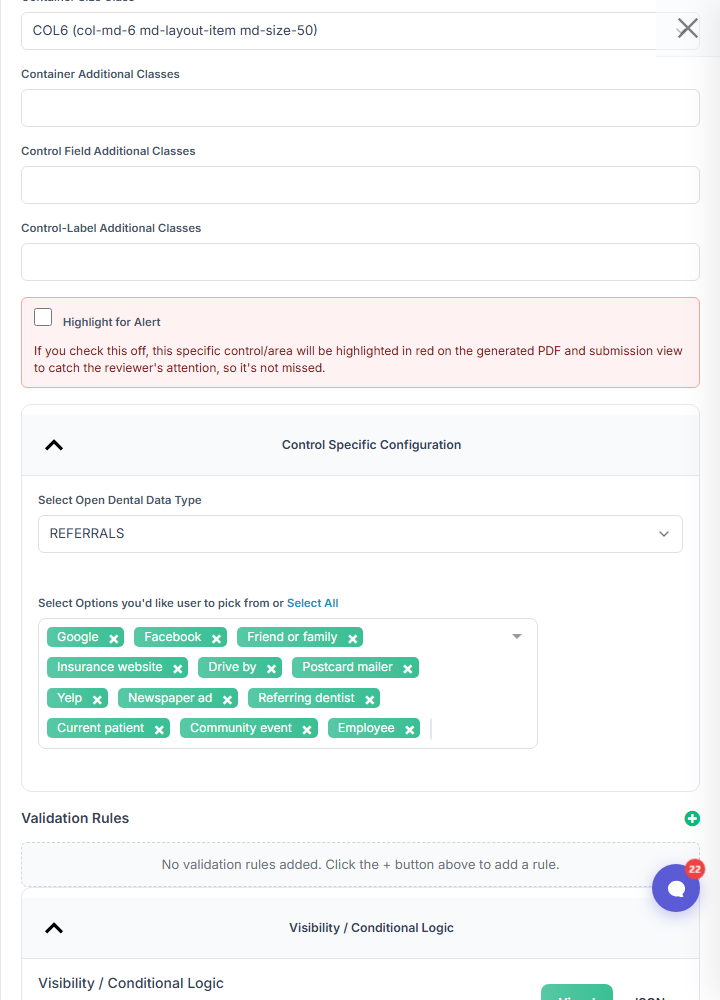
Expand Control Specific Configuration and set Select Open Dental Data Type to REFERRALS. Your referral list loads from Open Dental. Pick the sources patients may choose from, or use Select All.
-
Optional: under Validation Rules, add required if every patient must answer.
-
Select Save & Close, then Save Changes on the form.
The two settings must agree
Section titled “The two settings must agree”Save to Open Dental Field = Referrals only makes sense on a control whose data type is REFERRALS — that is the only control that holds a real Open Dental referral. So the builder checks the pair when you save:
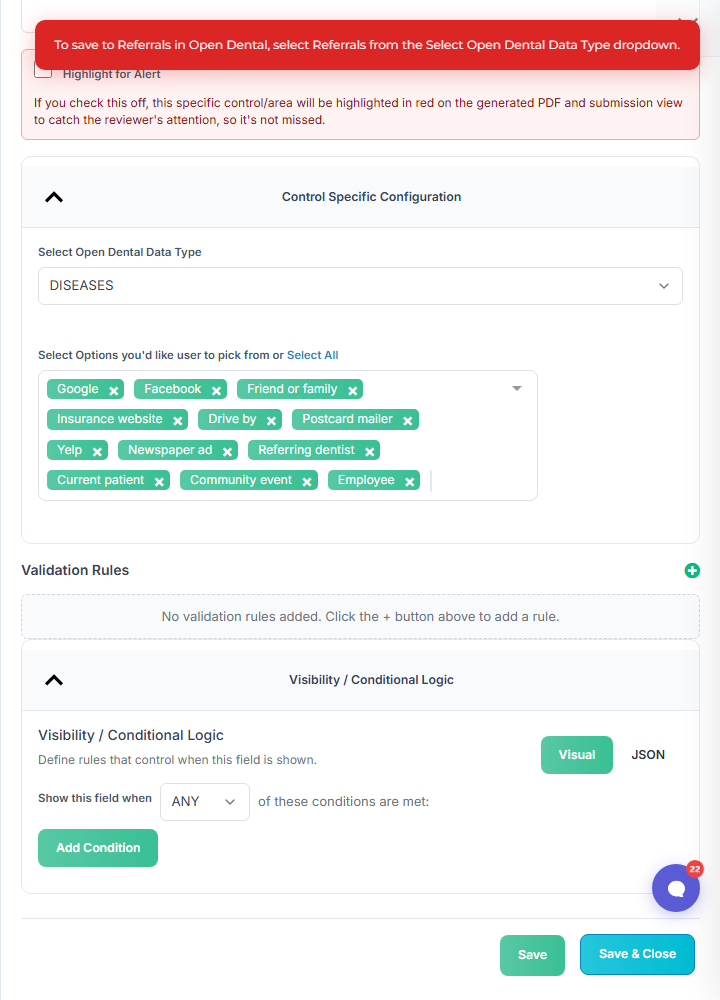
- If Save to Open Dental Field is Referrals but Select Open Dental Data Type is not REFERRALS, both Save and Save & Close are refused with: To save to Referrals in Open Dental, select Referrals from the Select Open Dental Data Type dropdown. Switch the data type to REFERRALS and save again.
- The reverse is also caught: a REFERRALS control can’t be saved to Allergies, Diseases, Medications, or any other chart field.
What the patient sees
Section titled “What the patient sees”A single-choice dropdown — the patient picks at most one referral source. There is no None option; a patient who doesn’t want to answer simply leaves it blank (unless you made it required).
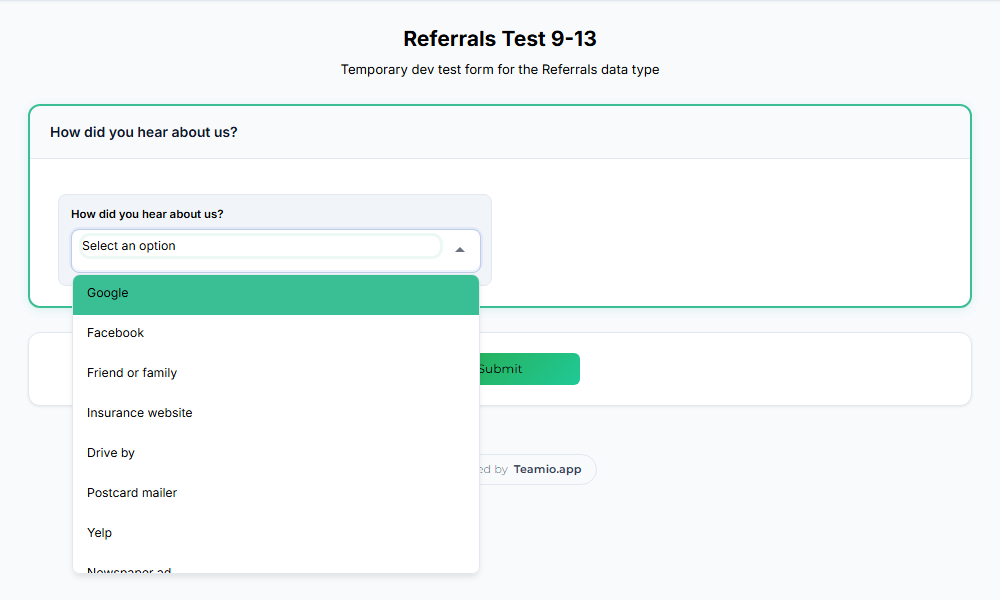
If the patient already has a referral source on their chart, it shows up pre-selected when they open the form, so a returning patient can confirm or change it.
What happens in Open Dental
Section titled “What happens in Open Dental”On submit, the pick is written to the patient’s chart through the Teamio connector on your Open Dental server (if the server is briefly offline, it queues and catches up). In Open Dental, open the patient’s Family module and look under Referrals: the source is listed as Referred From.
- No referral source on file → the pick is added.
- A referral source already on file → it is replaced with the pick.
- Left blank, or the same source picked again → nothing changes.
A form submission never removes a referral source from the chart.
Tips and common questions
Section titled “Tips and common questions”-
The list is saved with the form. If you later hide a referral source in Open Dental, reopen the control and remove it from the selected options; the form keeps offering whatever you last saved.
-
Highlight for Alert works on this control too. Because there is no None, any pick highlights the answer in the submission view and PDF; to narrow it to specific sources, use the Highlight only when the patient selects any of: picker. See Configuring a control.
-
Where do I see the answer in Teamio? In the submission view and the filed PDF, alongside the rest of the form. See Viewing submissions.
-
The submission isn’t a chart write on OTHER forms. Chart write-back needs a form type that updates the patient record (for example NP_FORM or MED_HX_UPDATE) — the Save to Open Dental Field dropdown doesn’t appear on OTHER forms. See Forms and Open Dental.
-
Only one field per form can save to Referrals. The same is true for Diseases, Allergies, and Medications. See One field per form for each Open Dental list.