
The Benefits & eligibility dashboard
The dashboard lists every upcoming appointment with the state of that patient’s insurance. It’s designed to be read top-down: the cards tell you the shape of the day, Action required tells you what to fix, and the table tells you patient by patient.
Where: Sidebar → the shield icon → Benefits & eligibility
How the page is laid out
Section titled “How the page is laid out”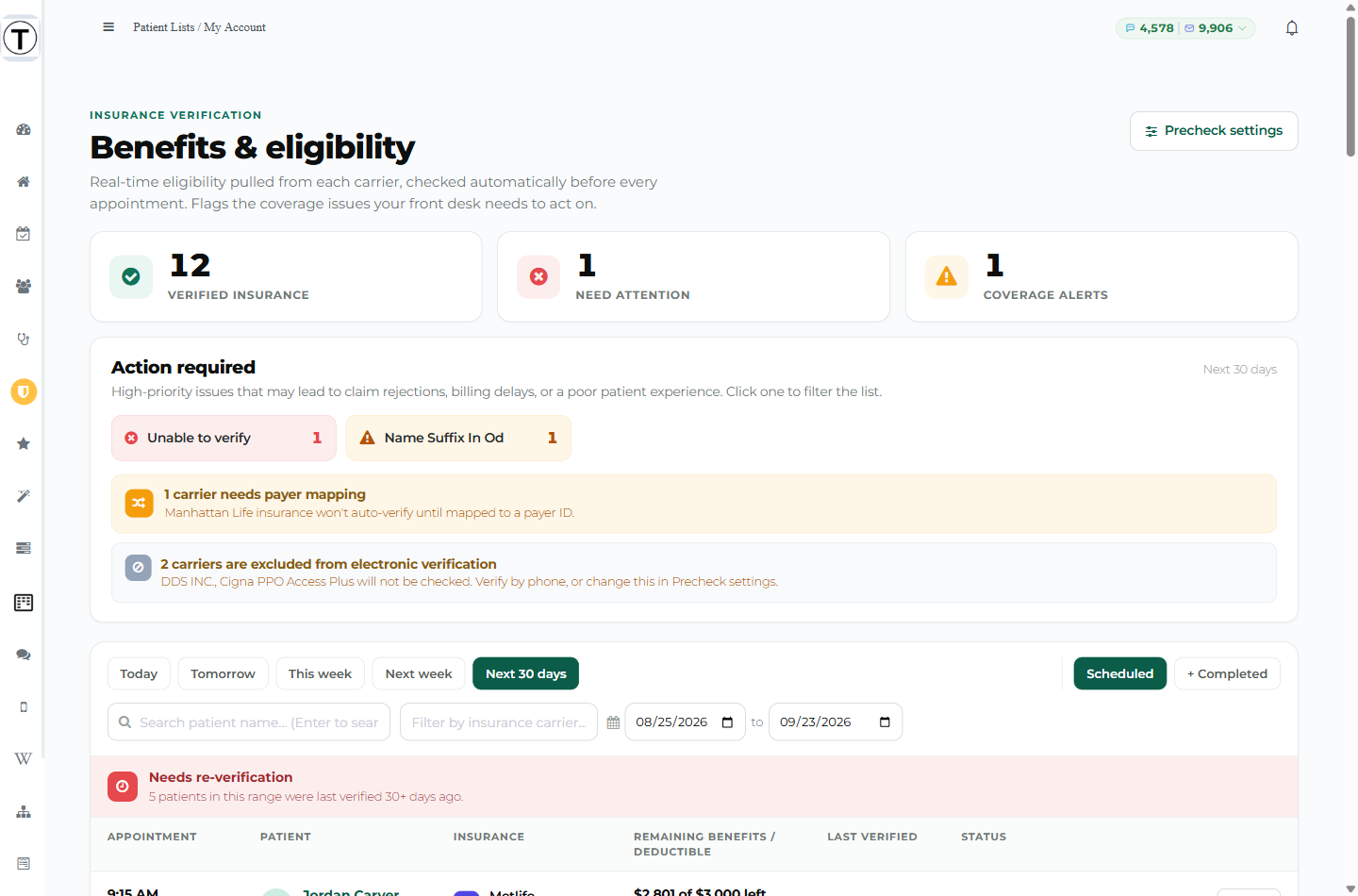
The three cards
Section titled “The three cards”Counts for the timeframe you’ve selected, not for all time:
| Card | What it counts |
|---|---|
| Verified insurance | Appointments whose plan came back confirmed |
| Need attention | Plans that came back inactive, couldn’t be verified, or errored |
| Coverage alerts | Verified plans carrying a warning — a maximum reached, a waiting period, a frequency already used up |
Action required
Section titled “Action required”The chips are the issues worth acting on. Select one to filter the table to just those patients. Red chips are blocking; amber chips are records to fix.
| Chip | What it means |
|---|---|
| Inactive insurance | The carrier says this plan isn’t active |
| Unable to verify | The carrier couldn’t match this patient |
| Missing member ID | No member ID on the plan in Open Dental |
| Placeholder member ID | The member ID is something like NONE, N/A, TBD, SELF, or all zeros |
| Missing subscriber name | No subscriber name on file |
| Missing subscriber DOB | No subscriber date of birth on file |
| Invalid subscriber DOB | The date of birth on file isn’t a usable date |
| Unrecognized carrier ID | The carrier’s Electronic ID in Open Dental isn’t one any payer answers to |
| Maximum reached | The patient has used their annual maximum |
| Maximum nearly reached | They’re close to it |
| Waiting period | The plan has a waiting period that applies |
The amber ones are all free to hit — Teamio refuses to send those checks and tells you so, rather than spending money on a request the carrier will reject. Fix the field in Open Dental and verify again.
Below the chips you may see up to three banners:
- “{N} appointment(s) need an Open Dental fix before verifying” — “These are skipped for free — no check is sent or billed until the record is corrected.”
- “{N} carrier(s) need payer mapping” — those carriers won’t auto-verify until you map them. See Carriers and payer mapping.
- “{N} carrier(s) are excluded from electronic verification” — carriers you’ve deliberately told Teamio not to check. Verify those by phone.
Filters
Section titled “Filters”- Timeframe — Today, Tomorrow, This week, Next week, Next 30 days. Opens on Next 30 days.
- Scheduled / + Completed — Scheduled is the default. + Completed also lists patients whose appointment has already happened, which is useful when you’re chasing a claim after the fact.
- Search patient name — filters what’s on screen. Press Enter to search all patients instead, ignoring the date window; a banner appears while you’re in that mode, with Back to schedule to leave it.
- Filter by insurance carrier — type a carrier name.
- Date range — two date boxes for a custom window.
Clear filters appears once any of these are set.
Needs re-verification
Section titled “Needs re-verification”A red banner reading “{N} patient(s) in this range were last verified 30+ days ago.” The number of days comes from Consider stale after in Precheck settings. This is a display flag only — it never spends anything on its own.
The table
Section titled “The table”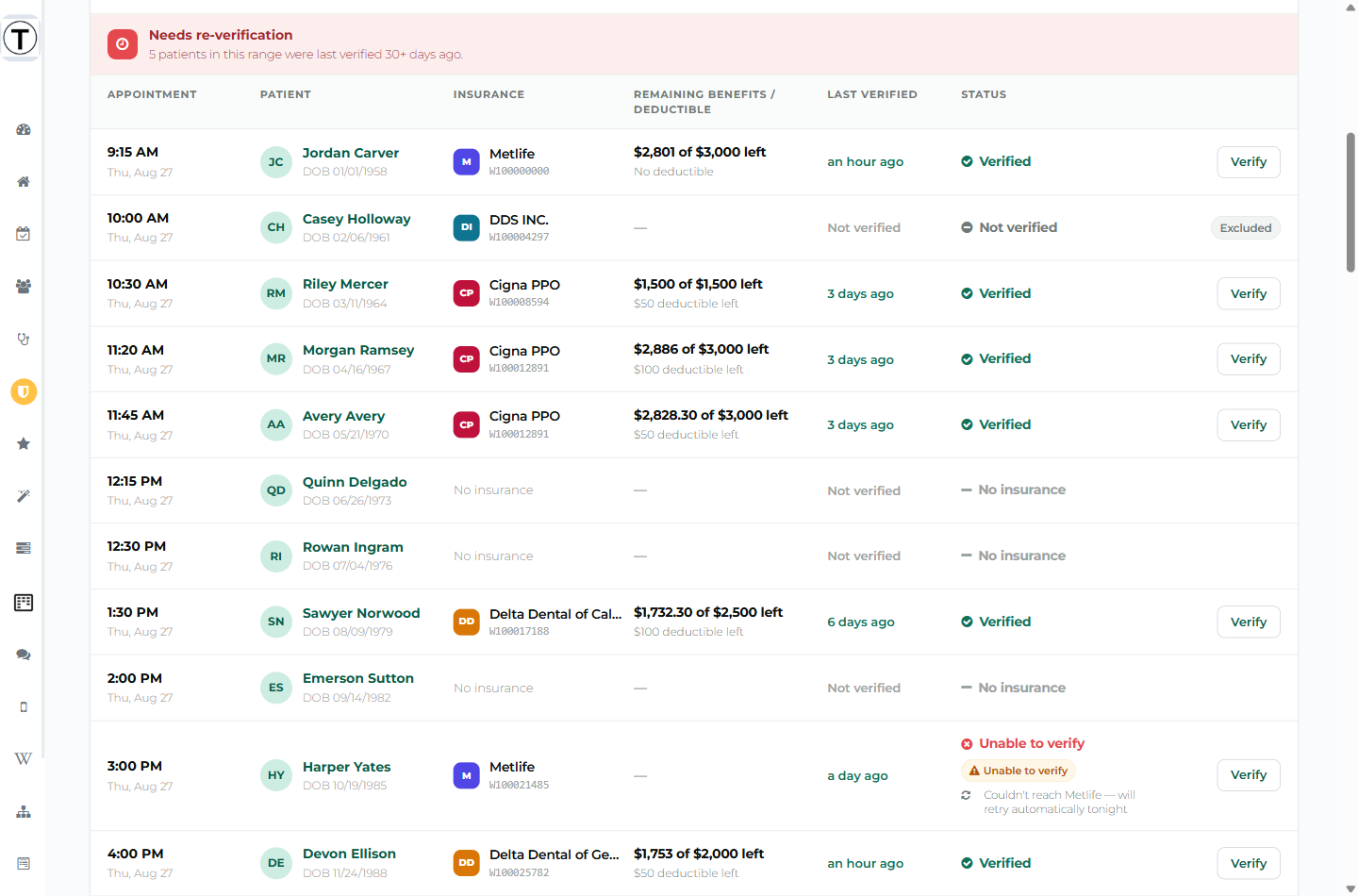
| Column | What’s in it |
|---|---|
| Appointment | Time and day. A Completed pill appears on past visits when you’ve turned on + Completed |
| Patient | Name and date of birth |
| Insurance | Carrier and member ID. A patient with two plans shows both, the second tagged 2nd |
| Remaining benefits / deductible | Two lines — see below |
| Last verified | A relative date, or Not verified |
| Status | The status badge, plus any warning pills |
Select any row to open the full breakdown. See Reading a verification.
Reading the Remaining benefits column
Section titled “Reading the Remaining benefits column”The wording changes with what the carrier actually told us, and the difference matters:
| It says | It means |
|---|---|
| $2,000 of $3,000 left | The carrier gave both the maximum and the remaining amount |
| $3,000 maximum | The carrier gave the maximum but not how much is left. This is not “$3,000 left” |
| No annual maximum | The plan is unlimited |
| $50 deductible left | The remaining deductible |
| $50 deductible | The deductible amount, with usage unknown |
| Deductible met | Nothing left to meet |
| No deductible | The plan has none |
| — | Nothing verified yet, or the carrier gave no figure |
Out-of-network amounts are never substituted in — that cap doesn’t apply to the office treating the patient.
Status badges
Section titled “Status badges”| Badge | Meaning |
|---|---|
| Verified | Coverage confirmed |
| Inactive insurance | The carrier says the plan isn’t active |
| Unable to verify | The carrier couldn’t match this patient |
| Error | The check didn’t complete |
| Pending | A check is in flight |
| Not verified | Insured, but never checked |
| No insurance | No plan on file |
The action column
Section titled “The action column”- Verify runs a check on that patient. If they were verified recently, it opens the drawer and asks first — see Verifying a patient.
- Excluded replaces the button when the carrier is on your exclusion list.
”Will retry automatically”
Section titled “”Will retry automatically””A failed row can carry a grey note like “Couldn’t reach Metlife — will retry automatically tonight”.
That only appears when the failure was temporary and your automation is switched on — so it’s a promise Teamio can actually keep. Don’t click Verify on those rows. The retry is already scheduled and free; clicking pays for a check that was coming anyway.
If the appointment is further out than your Verify before appointment window, the note says “will retry automatically closer to the appointment” instead, because the nightly run isn’t looking at that patient yet.
A row with a permanent problem never gets this note — those need a human.
Troubleshooting
Section titled “Troubleshooting”The table is empty
Section titled “The table is empty”Widen the timeframe, or clear the carrier and search filters. Next 30 days is the widest preset; the two date boxes go wider still.
I searched a patient and got nothing
Section titled “I searched a patient and got nothing”The search only looks at the appointments in your date range. When nothing matches you’ll be offered Search all patients — that ignores the date window and searches your whole book.
A patient shows “No insurance” but they have a plan
Section titled “A patient shows “No insurance” but they have a plan”The plan lives in Open Dental. If it isn’t attached to the patient there, Teamio has nothing to check. Add it in Open Dental and it appears here.