
Email alerts for tagged cards
Some cards can’t wait for the next time someone opens the board — a broken compressor, an urgent repair, a same-day patient issue. Tag alerts turn a tag into an email: pick a tag (like Urgent) and who should hear about it, and the moment anyone puts that tag on a card, those people get an email.
Turn on tag alerts for a board
Section titled “Turn on tag alerts for a board”- Open the board.
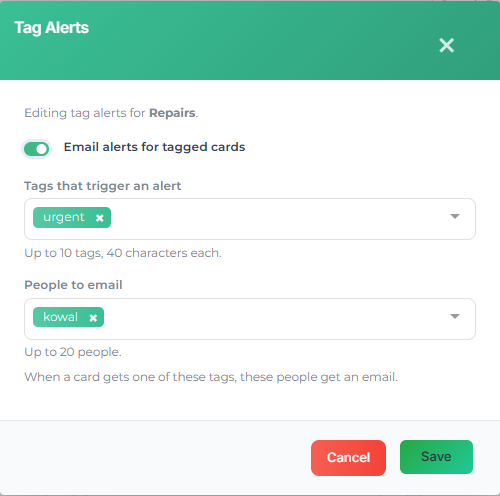
- Select the bell button next to the members button at the top of the board.
- Turn on Email alerts for tagged cards.
- Under Tags that trigger an alert, type a tag and press Enter — up to 10 tags, 40 characters each. Capitalization doesn’t matter: Urgent and urgent are the same tag.
- Under People to email, pick your teammates — up to 20 people. On a private board, you can only pick board members.
- Select Save.
What triggers an email
Section titled “What triggers an email”An email goes out when a card gets one of your alert tags — whether the tag is added to a brand-new card or to an existing one:
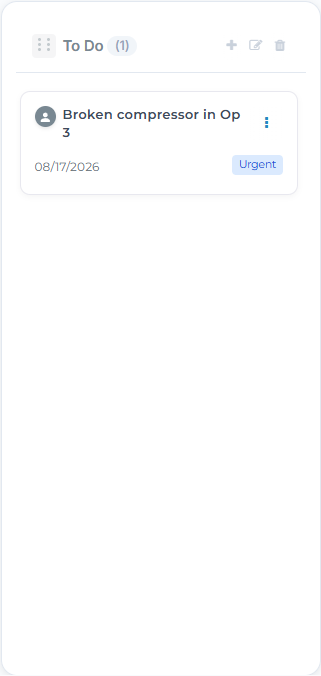
- Adding a card that already carries the tag → alert.
- Adding the tag to an existing card → alert.
- Editing or moving a card that already had the tag → no alert (no repeats every time someone touches the card).
- Removing the tag and adding it back later → alert again — re-tagging is how you re-escalate.
- The person who added the tag doesn’t get their own alert — they already know.
What the email looks like
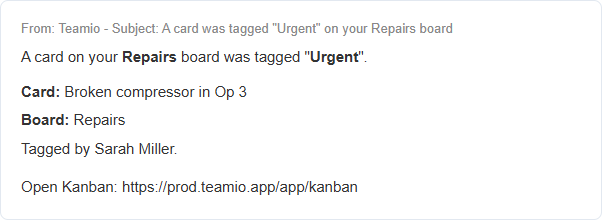
Section titled “What the email looks like”Each recipient gets an email with the card name, the board, who tagged it, and a link back to Kanban:
- One tag is usually enough. A board where everything is tagged Urgent is a board where nothing is.
- Agree on the tag with your team and put it in the board description — the alert matches the exact tag word, so Urgent works but ASAP won’t unless you add it too.
- Pair it with a repairs or lab-cases board: the people who fix things get emailed the moment something needs fixing, without watching the board all day.