
Setting up payment collection
Before your team can take a single payment, payment collection has to be set up for your site. It’s a one-time setup with a few steps — and the last one (turning collection on) stays locked until the earlier steps are done. That lock is deliberate: it’s what guarantees every payment you take also lands on the patient’s Open Dental ledger.
The setup checklist
Section titled “The setup checklist”Settings → Payments shows a short readiness checklist. Payment collection can’t be turned on until every item is green:
- Payment processor connected — Moolah, set up by Teamio.
- Card → Open Dental PayType mapping — so payments post to the right place on the ledger (you set this).
- Open Dental posting decision — on (recommended) or a deliberate off (you choose).
- Enable Payment Collection — the final switch, which unlocks once 1–3 are done.

Step 1 — Teamio connects your processor
Section titled “Step 1 — Teamio connects your processor”Moolah is connected on Teamio’s side. If you don’t see Moolah as your provider yet, contact support to get connected (or to switch processors). Once it’s connected, the rest of the setup appears in Settings → Payments.
Step 2 — Map card types to Open Dental PayTypes
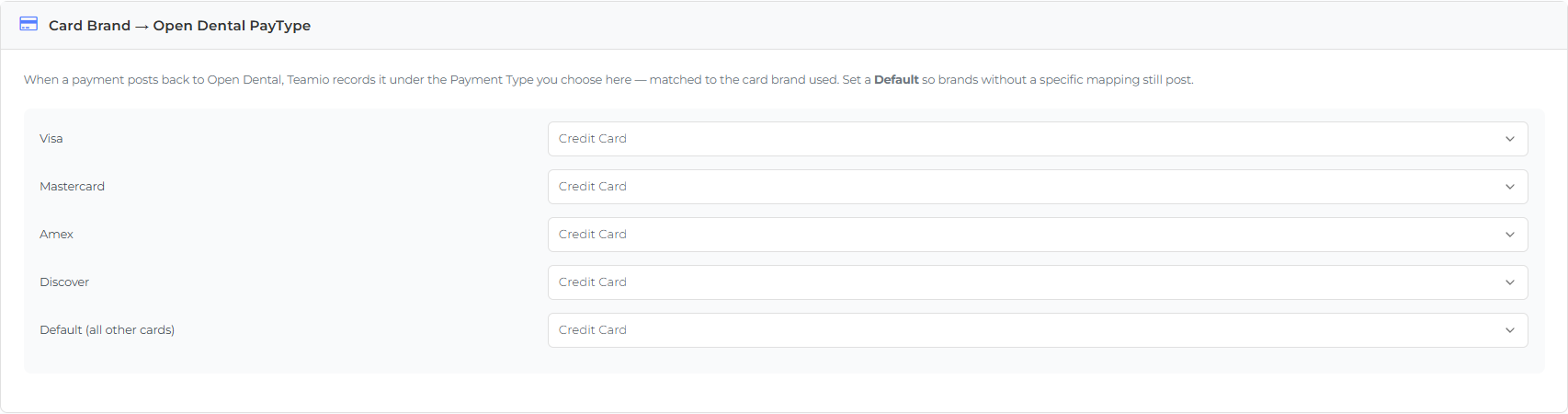
Section titled “Step 2 — Map card types to Open Dental PayTypes”In Settings → Payments, find Card Brand → Open Dental PayType. For each card brand — Visa, Mastercard, Amex, Discover — pick the Open Dental payment type it should post under, and set a Default for anything else.
The Default is required. It’s the catch-all so every card payment has a place to land on the ledger, even brands you didn’t map individually.
Step 3 — Choose Open Dental posting
Section titled “Step 3 — Choose Open Dental posting”The Write payments back to Open Dental toggle decides whether successful payments post to the patient ledger automatically.
- On (recommended) — every successful payment is posted to Open Dental for you, so Teamio and your ledger stay in sync. This needs the Default PayType from Step 2.
- Off — payments still get charged, but Teamio won’t record them in Open Dental; your team posts them manually. Turning it off asks you to confirm, so it’s never off by accident.

Step 4 — Turn on payment collection
Section titled “Step 4 — Turn on payment collection”Once the checklist is green, the Enable Payment Collection toggle unlocks. Turn it on and save. Your team can now take payments from the patient profile — see Collecting a payment.
Until then the toggle stays disabled, and it tells you exactly what’s left (for example, “Choose whether to post payments to Open Dental” or “Set a Default Card → Open Dental PayType”). You can always turn collection off later without losing your setup.
If a payment doesn’t reach Open Dental
Section titled “If a payment doesn’t reach Open Dental”Once you’re set up, posting is automatic. If a specific payment seems missing from the ledger, see Payments and Open Dental for what to check.