
Email signature
Your practice’s email signature — logo, name, phone, address and links — is set up once, in one place. Treatment Plan emails and the emails you write from a patient’s profile pick it up automatically; to place it in a Wiki email template or a campaign, add the {{email_signature_block}} variable where you want it. Templates without the variable are unchanged.
Set up your signature
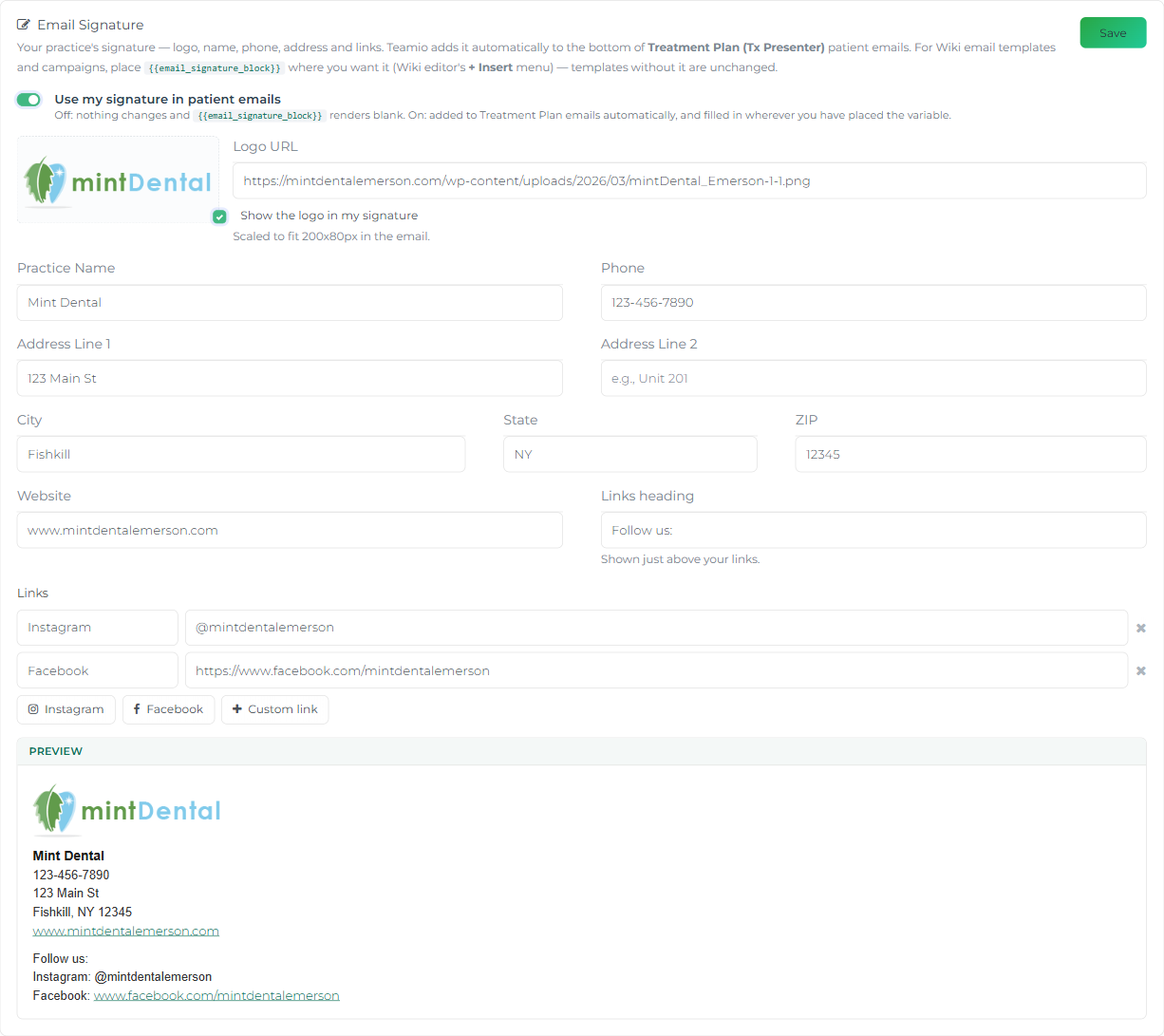
Section titled “Set up your signature”- Go to Settings → Email and find the Email Signature card.
- Fill in what you want to appear: to add a logo, select Upload logo and choose a PNG, JPG, GIF, WebP or SVG file (up to 10 MB) — Teamio converts it to PNG, scales it to fit 200x80px in the email, shows it in the preview, and checks Show the logo in my signature for you. Use Remove logo to clear it. Prefer a link? Select or paste a link to your logo to show the Logo link field. Then fill in Practice Name, Phone, Address Line 1 and Address Line 2, City, State, ZIP, and Website.
- Add social or custom links under Links — select Instagram or Facebook to add a preset row, or Custom link for anything else, then fill in a Label and a value. A value can be a full
https://address (it becomes a clickable link) or plain text such as@yourpractice(it’s shown as text). Give the row a Links heading (defaults toFollow us:) to introduce them. - Turn on Use my signature in patient emails — see The switch below — so it’s actually added to your emails.
- Select Save.
The first time you open the card, Logo link, Practice Name, Phone, and the address fields prefill automatically from your practice profile — but only if no signature has been saved yet. This is why the Logo link field is shown automatically on a first visit: it prefills from the practice profile’s logo link. Edit or clear anything you don’t want. Once you’ve saved once, a field you clear stays cleared; Teamio won’t fill it back in from your profile on a later visit.
The switch
Section titled “The switch”Use my signature in patient emails decides whether the signature actually goes out:
- Off — nothing changes, and
{{email_signature_block}}renders blank wherever it appears. - On — the signature is added to Treatment Plan emails and patient-profile emails automatically, and filled in wherever you’ve placed the variable.
Saving with the switch on but nothing filled in — no name, logo, or link — is refused: “Your signature is switched on but empty, so nothing would be added to your emails. Add at least a practice name, logo, or link — or switch the signature off.” Saving with the switch off is always allowed, so you can set the fields up now and switch it on when you’re ready.
A live preview at the bottom of the card shows exactly what patients will see. While the switch is off, the preview carries a Turned off pill and a note that it’s a preview only — the signature isn’t added to any email until you turn it on.

Where the signature appears
Section titled “Where the signature appears”| Where | How it’s added |
|---|---|
| Treatment Plan (Tx Presenter) patient emails | Automatic. Added to the treatment-plan link email, the signed-PDF confirmation email, and the “your office replied” comment notification. There’s nothing to insert — don’t paste {{email_signature_block}} into these templates (Tx Presenter → Settings → Delivery / Post-sign email); Teamio adds the signature below the message on its own. |
| Emails you write from a patient’s profile | Automatic. Added below the message you write in the profile’s Email panel, including when you start from a text template — see Emailing a patient from their profile. Forms sent by email from the profile’s Form button don’t carry it. |
| Wiki email templates & Campaigns | Only where you place {{email_signature_block}}. Works in any email template a Wiki page powers (appointment and recall reminders, appointment-booked confirmations, form emails, workflow emails) and in campaign emails. A template without the variable is unchanged. |
| Text messages | Never. The variable is email-only — if it ends up in an SMS template, it’s simply removed from the text. |
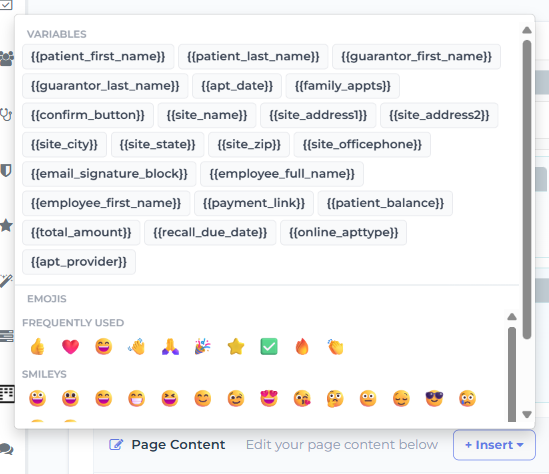
To add it to a Wiki email template, open the page in the editor and insert {{email_signature_block}} from the + Insert menu (top-right of Page Content), same as any other variable.
Treatment Presenter shows a copy
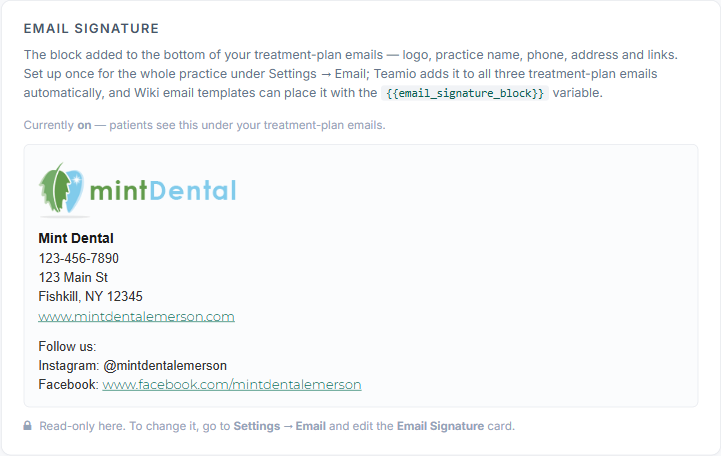
Section titled “Treatment Presenter shows a copy”Treatment Presenter → Settings → General shows a read-only copy of your signature, under Email signature, exactly as it will appear on treatment-plan emails — including whether it’s currently on or off. It can’t be edited there; change it from Settings → Email.
- Upload the file rather than linking to your website. Website logos are often
.webpor set as a CSS background image, and some email apps (Outlook on Windows in particular) can’t show.webpor.svg— uploading converts it to PNG, which every email app displays. - If a pasted link shows “Can’t load”, the link isn’t reachable as an image — upload the file instead, or clear it to leave the logo out.
- iPhone
.heicphotos and PDFs aren’t accepted for upload — Teamio asks you to export a PNG or JPG first. - Keep it to one signature. There’s a single signature per practice, shared by every feature that sends patient email — there’s no per-template or per-user version.
- Test it before relying on it — email yourself a treatment plan, or send yourself a campaign test, to see the signature exactly as a patient will.
Related
Section titled “Related”- SMS & email templates — where email templates live and how they’re used
- Using the editor → Variables — inserting
{{email_signature_block}}and other variables - Creating a campaign — send a campaign email that carries your signature
- Treatment Presenter settings — where the read-only copy of your signature lives