
The Recall Reminder Text Report
The Recall Reminder Text Report answers “how many recall reminders did we actually send?” — every automated reminder text or email that went out, for any date range you pick, without asking Teamio to pull it for you.
Where: Top navigation bar → Overdue Recall → the bar-chart icon in the Overdue Recall Patients card header
The icon is easy to miss — it’s an icon with no text label. Look for a small bar-chart icon sitting immediately to the left of the Only show patients with Preventive Freq of 2 per Year toggle, in the header of the Overdue Recall Patients card. Hover it and the tooltip reads View report of Recall Reminder Messages sent.

Opening the report
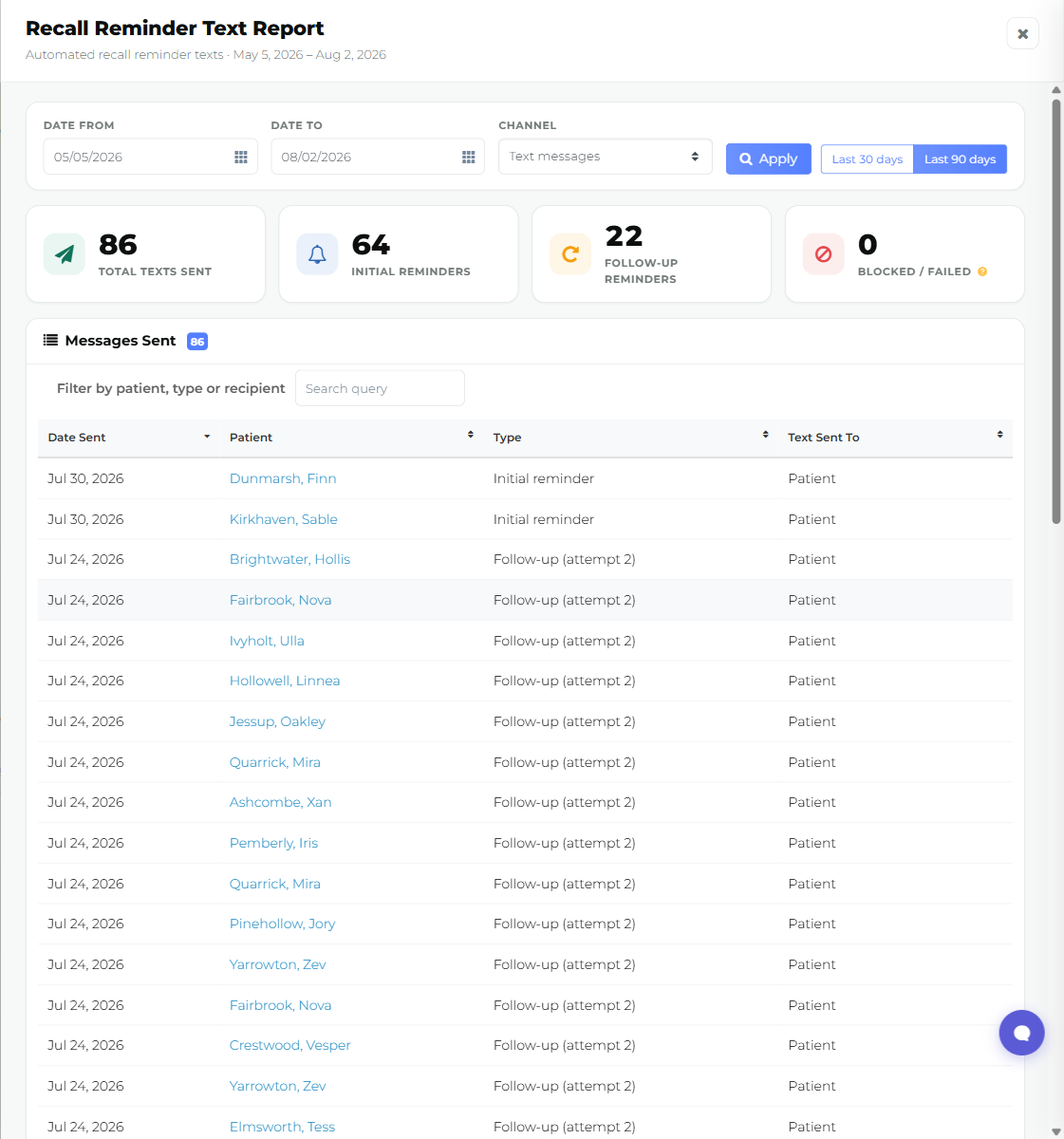
Section titled “Opening the report”Select the icon and a panel slides in from the right, about 70% of the screen width. The header reads Recall Reminder Text Report, with a subtitle underneath like Automated recall reminder texts · May 5, 2026 – Aug 2, 2026 (the word changes to “emails” or “messages” depending on the channel you have selected).
It opens already loaded with the last 90 days — there’s nothing to press first.
Close it with the X at the top right, by pressing Esc, or by selecting outside the panel.
Filtering the report
Section titled “Filtering the report”Along the top of the panel:
- Date From / Date To — date pickers for the range you want.
- Last 30 days / Last 90 days — quick-range buttons; the active one is highlighted. “Last 30 days” spans 30 calendar days including today.
- Channel — a dropdown with three options: Text messages (the default), Emails, and Text messages and emails.
- Apply (the magnifier icon) — re-runs the report after you change the dates.
The four summary tiles
Section titled “The four summary tiles”- Total Texts Sent / Total Emails Sent / Total Messages Sent — the label follows whichever channel you picked. This is the same number as the row count in the table below.
- Initial Reminders — the first reminder in a patient’s recall cadence.
- Follow-up Reminders — every later attempt in that same cadence.
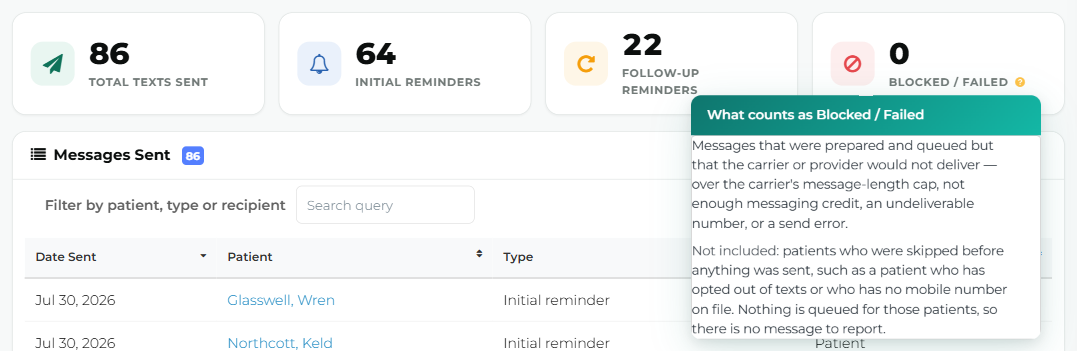
- Blocked / Failed — hover the ? for the explanation: messages that were prepared and queued but that the carrier or provider would not deliver — over the carrier’s message-length cap, not enough messaging credit, an undeliverable number, or a send error. Not included: patients who were skipped before anything was sent, such as a patient who has opted out of texts or who has no mobile number on file — nothing is queued for those patients, so there’s no message to report.
The Messages Sent table
Section titled “The Messages Sent table”The table (heading Messages Sent, with a count badge) lists every reminder attempt in the date range:
| Column | What it shows |
|---|---|
| Date Sent | Shown like May 24, 2026. Sorted newest-first by default. |
| Patient | Shown as Last, First. Selecting the name opens that patient’s profile in a new browser tab. |
| Channel | Only appears when Channel is set to Text messages and emails; reads Text or Email. |
| Type | Initial reminder, or Follow-up (attempt 2), Follow-up (attempt 3), and so on. |
| Text Sent To | Patient or Parent/Guardian — see below. |
Every column header sorts. Above the table, a Filter by patient, type or recipient search box narrows the rows already loaded. The table pages at 50 rows.
When there’s nothing to show
Section titled “When there’s nothing to show”If nothing was sent in the selected range, you’ll see No recall reminders in this date range, with Nothing was sent between [date] and [date]. Try widening the dates above. Legitimate reasons for zero results: the practice is new, the recall reminder cadence is paused or not configured, or the date range is too narrow.
Tips & common questions
Section titled “Tips & common questions”- The table is one row per attempt, not per patient. A patient who gets three reminders shows up as three rows — that’s why the total can run higher than the number of patients you actually contacted.
- Opted-out and no-mobile-number patients never appear here. If a patient has opted out of texts or has no mobile number on file, nothing was ever queued for them, so there’s nothing to show in the report.
- What this is for: answering “how many recall reminders did we actually send last quarter?” yourself, without asking Teamio support to pull the number for you.